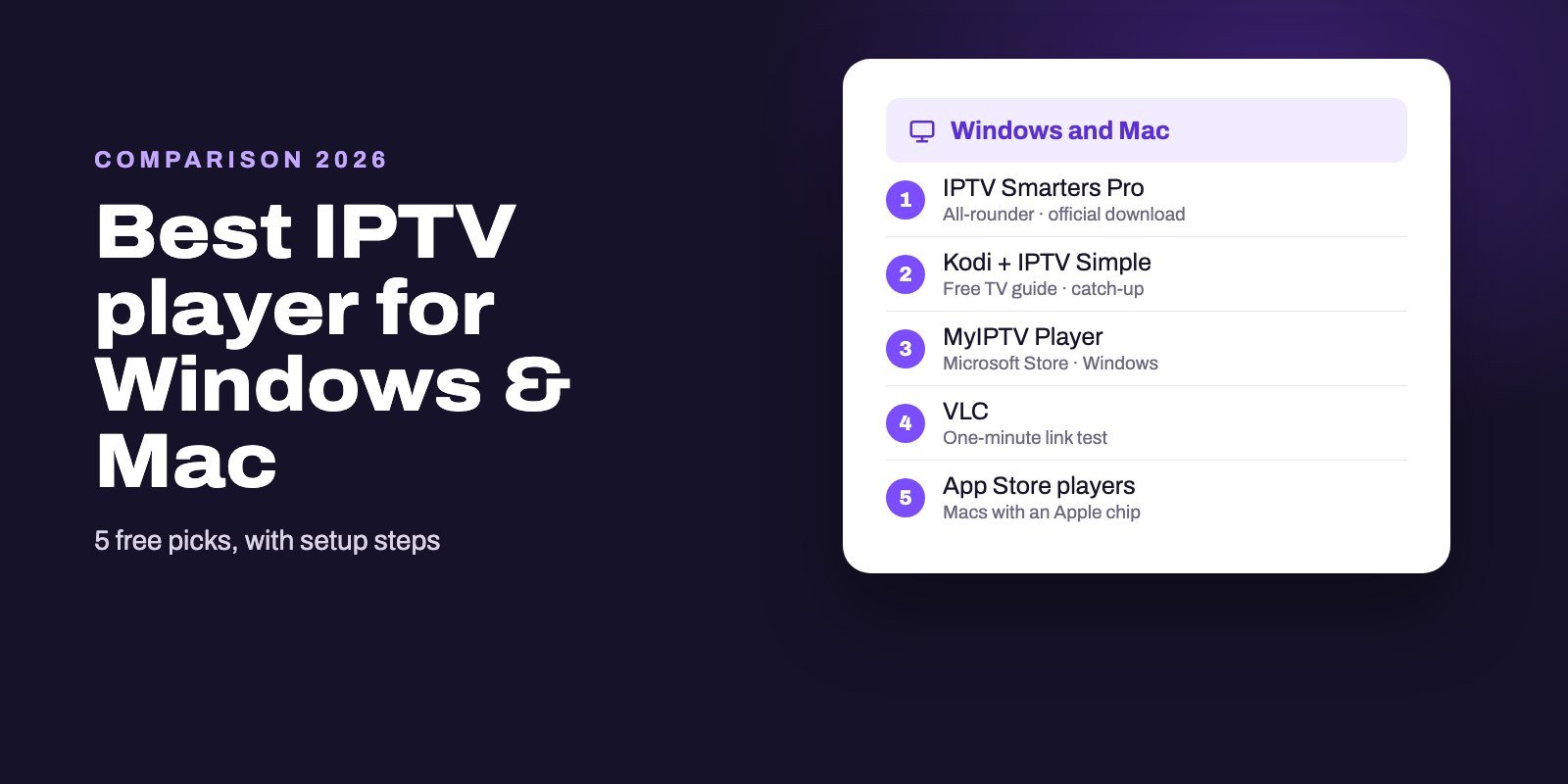
The best free IPTV player for most Windows and Mac users is IPTV Smarters Pro, downloaded from its official website. Kodi with the IPTV Simple add-on gives you the most complete free TV guide, MyIPTV Player is the simplest choice in the Microsoft Store, and VLC is the fastest way to test a link. On a Mac with an Apple chip, App Store players such as Smarters Player Lite and UHF also run.
On a computer, where you download a player matters as much as which one you pick. The Microsoft Store lists several apps with Smarters-like names from other companies, while the real IPTV Smarters for Windows comes only from getiptvsmarters.com, with a checksum you can verify. Stick to official sources and free tools, and trying three players costs you nothing but half an hour.
Note: Smart IPTV App is an IPTV provider, and we promote our own service on this page. The apps and devices mentioned here are made by independent companies.
Last checked: October 9, 2026, against getiptvsmarters.com, the Microsoft Store, the IPTV Simple documentation, videolan.org and the App Store. Versions and ratings change, so treat them as a snapshot.
The five players at a glance
| Runs on | Login types | TV guide | Get it from | |
|---|---|---|---|---|
| IPTV Smarters Pro | Windows, Mac | Xtream Codes, M3U | Yes | getiptvsmarters.com |
| Kodi + IPTV Simple | Windows, Mac, Linux | M3U, with XMLTV guide | Yes, full grid | kodi.tv or Microsoft Store |
| MyIPTV Player | Windows | Xtream Codes, M3U | Yes | Microsoft Store |
| VLC | Windows, Mac, Linux | M3U or a single stream link | No | videolan.org |
| App Store players | Macs with an Apple chip | Depends on the app | Depends on the app | Mac App Store |
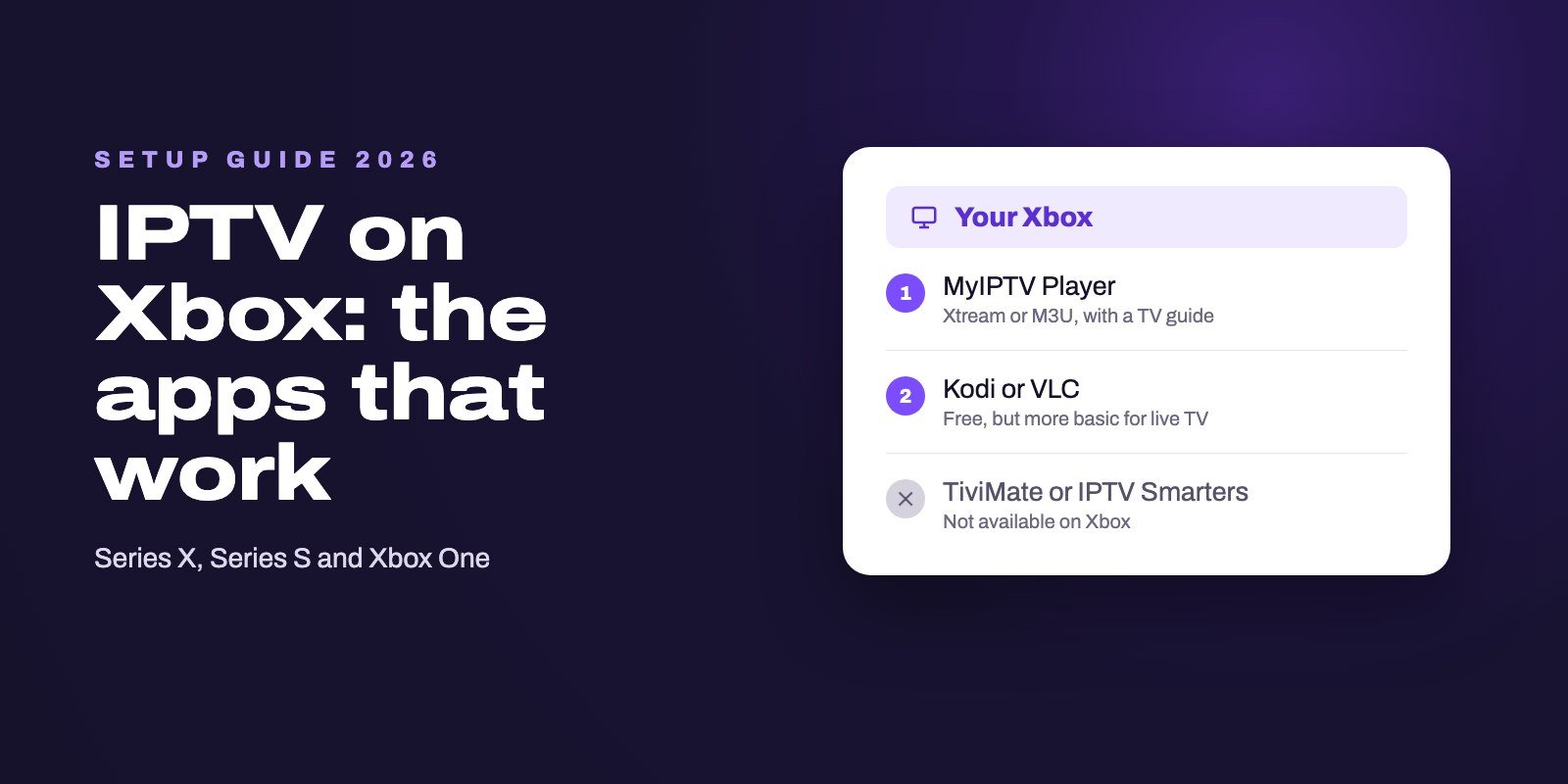
All five are free to start with. Some App Store players sell upgrades inside the app, which our comparison of Apple IPTV apps covers in detail. TiviMate, the favorite on Android TV, has no Windows or Mac version.
1. IPTV Smarters Pro: the all-rounder
If you already use IPTV Smarters on a TV or a phone, the computer version works with the same Xtream Codes login. The developer publishes it on its official download page for both systems, with a 125 MB installer for Windows and a 72 MB download for macOS, version 1.2.
The same page publishes a SHA-256 checksum for each file and states that the application is not distributed through any other website. That sentence matters. Search the Microsoft Store for "Smarters" and you will find IPTV Smarters Expert, IPTV Smarter for Windows, Smarters IPTV and Smarters IPTV Pro, from four different publishers. Some may be fine. None of them is the download the developer points to.
Install it on Windows
- Open getiptvsmarters.com/download and choose the Windows version.
- Optional but wise: compare the file's SHA-256 checksum with the one on the page. In Windows PowerShell,
Get-FileHashfollowed by the file path prints it. - Run the installer and open the app.
- Choose Xtream Codes as the login type, name the profile, and fill in the server URL as written in your welcome message (with
http://and the port), then your username and your password. - Select Add user and wait while the app downloads channels, films and series.
Install it on a Mac
Download the macOS version from the same page and drag the app into Applications. On macOS, shasum -a 256 followed by the file path prints the checksum. The login steps are the same as on Windows.
2. Kodi with IPTV Simple: the free TV guide
Kodi is a free, open-source media center that runs on Windows, macOS, Linux and Android, available from kodi.tv and, on Windows, from the Microsoft Store under the Kodi Foundation's name. On its own it plays nothing from IPTV. The official add-on PVR IPTV Simple Client turns it into a live TV player with a proper channel guide.
According to its documentation, IPTV Simple reads an M3U playlist and an XMLTV guide, supports catch-up when your provider offers it, and can timeshift a live channel so you pause and rewind. Since Kodi 20, it can even hold several playlist and guide pairs at once.
Setting it up takes a few more steps than the other players, but you only do it once:
- Install Kodi, open it, go to Add-ons and install PVR IPTV Simple Client from the official repository's PVR clients category.
- Open the add-on's settings. Under the M3U part, set Location to Remote path and paste your link into M3U play list URL.
- Under the EPG part, set Location to Remote path again and paste your guide link into XMLTV URL.
- Enable the add-on, restart Kodi, then open TV from the main menu.
The reward is a real guide grid, for free. If the grid stays empty, our IPTV EPG guide explains how Kodi matches the guide to your channels.
3. MyIPTV Player: the simplest Store app on Windows
MyIPTV Player by Vbfnet Apps is free in the Microsoft Store and was last updated in May 2026, and its listing covers the essentials: Xtream Codes with catch-up, M3U playlists from a file or a web address, a built-in TV guide, favorites, PIN protection and the choice between VLC's playback engine and the Windows one.
The catch is its rating. It sits at 3.4 out of 5 from 355 reviews, the lowest score in this guide, so try it with a real login before you rely on it every evening.
- Install MyIPTV Player from the Microsoft Store and open it.
- In its settings, add a remote playlist with your M3U link, or choose the Xtream Codes option and enter your server, username and password.
- Select the playlist, refresh it, then open Channels and pick a category.
4. VLC: the one-minute link test
VLC is a free, open-source player from the non-profit VideoLAN, built for Windows, macOS and Linux and able to play "various streaming protocols". Version 3.0.24 for Windows is a 43 MB download, and there are separate builds for Intel Macs and Apple Silicon.
VLC is not an IPTV app. It has no TV guide grid, no Xtream Codes login and no categories. But it is perfect for one job: finding out in a minute whether a link works.
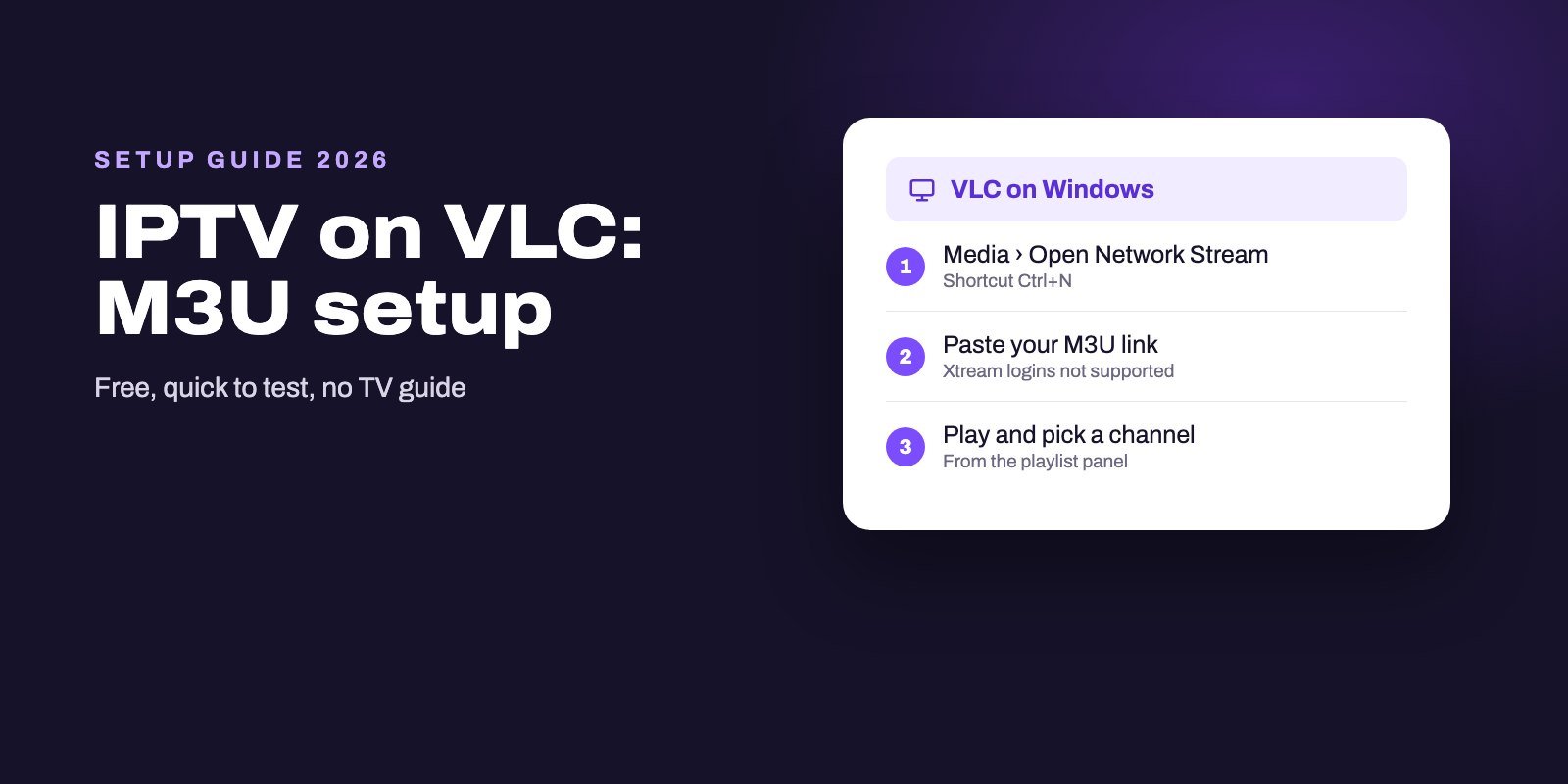
- Open VLC. On Windows, open the Media menu and choose Open Network Stream, as the VLC documentation describes.
- Paste your M3U link in the Network tab and select Play.
- Open the playlist view to see the channel list and double-click a channel.
If a channel plays in VLC but not in your usual player, the stream is fine and the player's settings need a look. If it stutters, the same dialog has a caching option under "Show more options" that adds a little buffer before playback.
5. App Store players on a Mac with an Apple chip
Many iPhone and Apple TV players also install on recent Macs, and their App Store pages make the condition clear: you need a Mac with an Apple M1 chip or later. Smarters Player Lite needs macOS 12.5, IPTVX needs macOS 12 and UHF needs macOS 13, all on Apple silicon.
The advantage is continuity. Some of these apps sync your lists across devices, so the Mac shows the same channels and favorites as the Apple TV. The trade-off is price. Most of them sell premium features inside the app, and our comparison of IPTV apps for Apple devices lists what each one costs.
On an older Intel Mac, stay with IPTV Smarters Pro from the official site, Kodi or VLC.
Which one should you install?
- You want one app that does everything with an Xtream login: IPTV Smarters Pro.
- You live in the TV guide and want catch-up or timeshift: Kodi with IPTV Simple.
- You prefer installing from the Microsoft Store: MyIPTV Player.
- You only want to check that a link works: VLC.
- You own an Apple TV and a recent Mac: the same App Store player on both.
Nothing stops you from keeping two. VLC for quick checks next to a full player for watching is a sensible pair.
Getting a smooth picture on a computer
A laptop on Wi-Fi in the far corner of the house is the classic cause of buffering. Three changes help more than any player setting:
- Use a cable when you can. Most desktops and many laptops have an Ethernet port, or accept a cheap USB adapter, and a cable takes the Wi-Fi out of the equation.
- Close the heavy stuff. Cloud backups, game downloads and large updates all compete for the same connection.
- Keep the computer awake. Power-saving modes can pause network activity when the lid closes or the screen sleeps. Plug the laptop in for long matches.
Still buffering? Our guide to IPTV not working walks you through three quick comparisons that separate a device problem from a network or server one.
From the computer to the TV
Plenty of people set IPTV up on a laptop and then want it on the big screen, and there are three ways to get it there, from the most reliable to the most convenient.
An HDMI cable. Boring, cheap and almost foolproof. Plug the laptop into the TV, pick that input, and the TV becomes a second screen with no extra delay and no dependence on Wi-Fi.
Wireless mirroring from Windows. Roku's own screen mirroring guide covers Windows 10 and Windows 11 computers, as long as the PC and the Roku sit on the same network. It works. It also adds one more wireless hop between the stream and your eyes, so fast sport can suffer on a busy network.
AirPlay from a Mac. A Mac can send its screen to an Apple TV, or to a compatible Roku running Roku OS 9.4 or later, according to Roku's AirPlay page, which lists macOS Mojave 10.14.5 or later as the requirement.
If you end up mirroring every evening, that is a sign. A small streaming device behind the TV, with its own player, will give you a steadier picture and free your computer. Our setup guide for every device shows the options.
Common problems on Windows and Mac
Windows warns you about the installer
Windows may show a SmartScreen warning for files downloaded outside the Store. Check that the file came from the developer's own site and that its SHA-256 checksum matches the one published there before you continue.
macOS refuses to open the app
Apps downloaded outside the App Store can trigger a security prompt on the first launch, so confirm that the file came from the official site, then allow it in System Settings under Privacy & Security.
The login is refused
Paste the details instead of typing them, and check the login type. If the refusal persists, the causes are the same as in our "failed to authorize" troubleshooting guide, computer players included.
The guide is empty
Xtream logins usually bring the guide with them. With an M3U link, add the EPG link from your provider in the player's settings, as our EPG guide explains.
Try two players on the same login
A computer is the easiest place to compare players, because nothing stops you from installing three at once. Ask for our free 24-hour trial, paste the same login into IPTV Smarters Pro and Kodi, keep VLC around for quick checks, and see which one you actually like using.
When you are ready, the Xtream Codes details or M3U link land in WhatsApp or your inbox 5 to 15 minutes after payment. Plans cover one to four devices simultaneously, so the laptop does not take the TV's place. Compare them on the IPTV subscription page, and see our setup guide for every device for the rest of the house.
Frequently asked questions
What is the best free IPTV player for Windows?
IPTV Smarters Pro from its official website for an all-in-one app with an Xtream login, Kodi with IPTV Simple for the most complete free guide, and MyIPTV Player if you prefer the Microsoft Store.
Is IPTV Smarters Pro in the Microsoft Store?
The developer distributes it only from getiptvsmarters.com. Store apps with similar names come from other publishers.
Can VLC play IPTV?
Yes, VLC plays an M3U link through Media, Open Network Stream. It has no TV guide or Xtream login, so it is best for testing a link.
What is the best IPTV app for Mac?
On any Mac, IPTV Smarters Pro from the official site, Kodi or VLC. On a Mac with an Apple chip, App Store players such as Smarters Player Lite, UHF or IPTVX also run.
Is TiviMate available for Windows or Mac?
No, it is an Android TV app. On a computer, Kodi with IPTV Simple is the closest free option for a guide-based layout.
Does Kodi support Xtream Codes?
The IPTV Simple add-on works with an M3U playlist and an XMLTV guide. Ask your provider for the M3U link of the same account; Smart IPTV App sends both.
Can I watch IPTV on my laptop and my TV with one subscription?
Yes, as long as your plan allows enough devices at the same time. Each screen playing at once counts toward the limit.