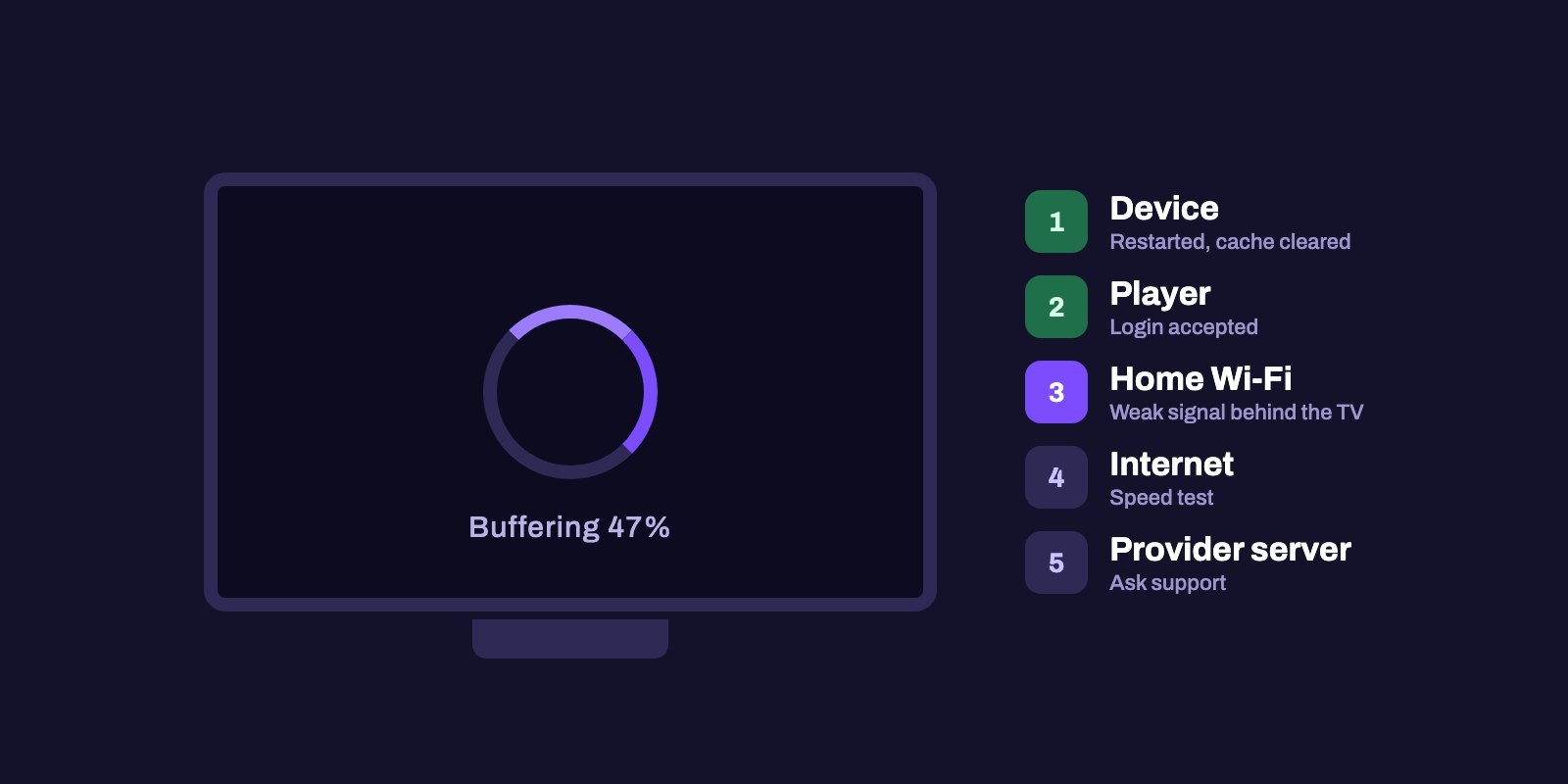
When IPTV stops working, the cause sits in one of four places: your device, your home Wi-Fi, your internet connection or the provider's server. Buffering on one TV usually means Wi-Fi or speed. A "login failed" message points to your details or your subscription. If nothing plays on any device while every other app works, the server is the likely cause, and only the provider can fix that.
So skip the reinstall for now. Two minutes of comparison tell you more: try another channel, then another device, then your phone on mobile data. Once you know where the problem is, the six buffering fixes below start with the quickest checks.
Note: Smart IPTV App is an IPTV provider, and we promote our own service on this page. The apps and devices mentioned here are made by independent companies.
Last checked: October 7, 2026. Speed figures come from Netflix Help Center, player features from getiptvsmarters.com. Menu names vary between devices and app versions.
Find the cause in two minutes
The usual reflex is to reinstall the app or reset the router, which can waste half an evening when the problem turns out to be somewhere else entirely. Three quick comparisons tell you where to look.
- Another channel. Other channels play fine? Then the problem is that one stream. Note its name and the time, and tell your provider.
- Another device. If the subscription works on your phone but not on the TV, the problem is the TV device or the player installed on it.
- Mobile data. If channels play on your phone over 4G or 5G but not over your home Wi-Fi, the problem is your home network or internet connection.
If nothing plays anywhere, on any device or connection, while the rest of the internet works, the problem is almost certainly on the provider's side.
| What you see | Most likely cause | Where to start |
|---|---|---|
| Picture freezes every few seconds, sound continues or stops | Weak Wi-Fi or slow connection | Speed test, Wi-Fi, wired connection |
| One channel never loads, others are fine | That stream is down or has moved | Report the channel to your provider |
| "Login failed", "Failed to authorize", "Invalid credentials" | Wrong details, expired or blocked account | Check the login, then the subscription |
| "Max connections" or playback stops when someone else watches | More screens than your plan allows | Stop playback on the other screens |
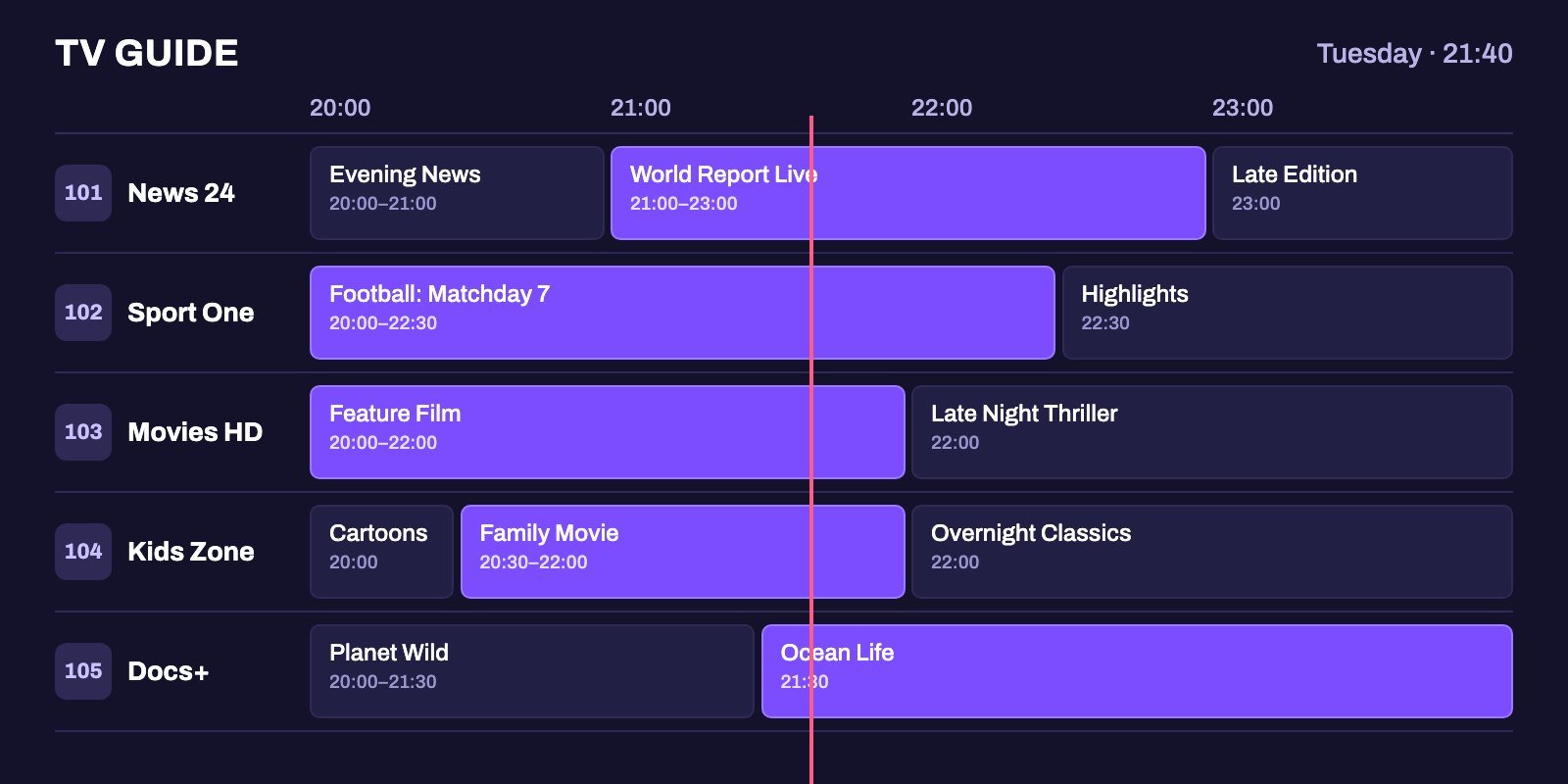
| Channel list loads, guide says "No information" | EPG not loaded or not matched | Refresh the guide |
| Everything fails on every device | Provider server problem | Contact support |
Is IPTV down right now?
There is no single "IPTV" service that goes up or down. Every provider runs its own servers, so an outage at one provider says nothing about another, and general outage websites rarely track individual IPTV providers. The fastest way to know is the test above: if your subscription fails on every device and every connection while other apps work, ask your provider's support whether they have a known issue.
When you contact them, mention when the problem happens. If channels freeze mostly in the evening or during big live events, when many people watch at once, the load may be on the provider's side or on your internet provider's network, and the times help them check. Say too whether anything changed recently: a new router, a new device, an app update or a new internet plan are common starting points.
How to stop IPTV buffering
Buffering means the stream arrives more slowly than the player needs it, so the player pauses to refill. Work through these fixes in order. The first ones solve most cases.
1. Measure your real speed where the TV is
Run a speed test on a phone standing next to the TV, connected to the same Wi-Fi network. Netflix recommends at least 3 Mbps for HD, 5 Mbps for Full HD and 15 Mbps for 4K on its own service, and it suggests Fast.com for the test. Those figures are for Netflix. Live IPTV channels can need more, and every other device using the connection at the same time takes its share, so treat them as a floor, not a target.
2. Fix the Wi-Fi before blaming the service
- Use a cable if you can. A wired Ethernet connection removes Wi-Fi drops entirely, and while Fire TV sticks need Amazon's Ethernet adapter, which plugs into the power port, most smart TVs and Android boxes already have a network socket.
- Use the 5 GHz network when the TV is in the same room as the router or close to it, since it is faster, but stay on 2.4 GHz when several walls stand in the way, because 5 GHz does not pass through them as well.
- Get the device out from behind the TV. A stick plugged straight into the back of a TV sits in a poor spot for Wi-Fi, and the HDMI extender that comes with many sticks helps by moving it a few centimeters away from the panel.
- Restart the router if it has been running for weeks: unplug it for 30 seconds, plug it back in and wait until every light is stable before you test anything, because a router that is still starting up gives misleading results.
3. Free up the connection
Bandwidth is shared. Large downloads, game updates, cloud backups and video calls all compete for it. When buffering starts as soon as someone else in the house goes online, pause those activities and test again.
4. Choose a lighter version of the channel
Many playlists carry the same channel in several qualities, such as HD, FHD and 4K, and when the 4K version buffers on your connection, the HD version often plays smoothly. A stable HD picture is more pleasant to watch than a 4K one that stops every minute.
5. Clear the player's cache and restart the device
Players store guide data and temporary files. Both pile up. On a Fire TV, go to Settings > Applications > Manage Installed Applications, choose your player and select Clear cache. Do not select Clear data, which deletes your login. Then restart the device. On a Fire TV that is Settings > My Fire TV > Restart. On a smart TV, unplug it from the wall for a minute, because the standby button often only puts it to sleep.
6. Try another player
Players handle streams differently. If one channel buffers in one app but plays in another with the same login, keep the app that works. IPTV Smarters Pro can also hand streams to an external player, according to its features page. Our comparison of IPTV players for Firestick covers the main options.
IPTV not working: error messages and what they mean
"Login failed" or "Failed to authorize"
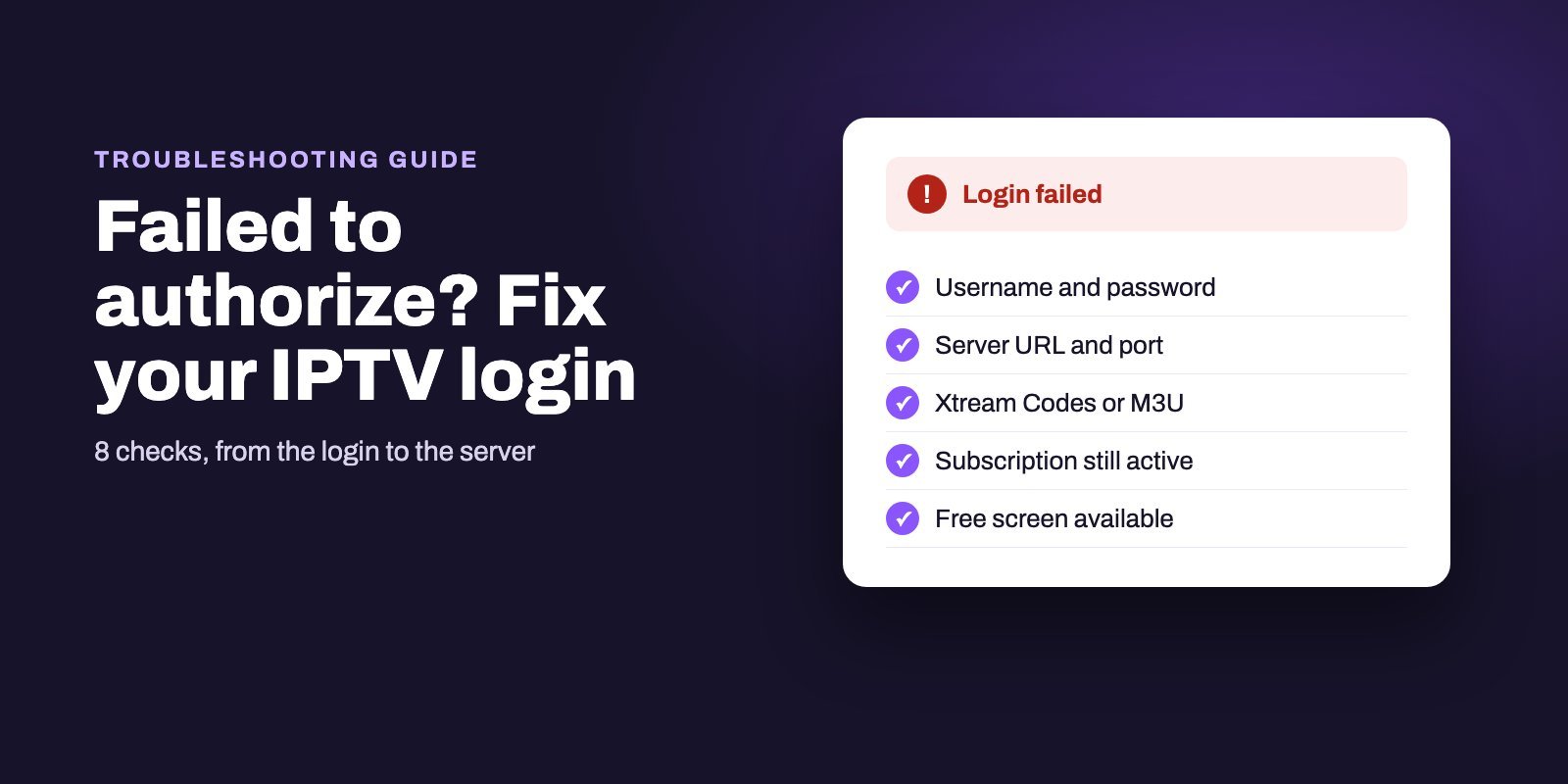
The server rejected your details. Check the server address, including http:// and the port number, then the username and password, which are case sensitive. A space copied at the end of a password is often the cause. With the details right, the next suspect is an expired subscription. Each possible cause has its own check in our fixes for login errors.
"Max connections reached" or playback stops when someone else watches
Every plan has a screen limit. A fourth person starting a stream on a plan for three will stop one of the others. Close the player on screens nobody is watching, because a player left open in the background may still count as a connection.
The channel list loads but channels stay black
Only a few channels black? Those streams have a problem. Report them. If none play, check the speed and Wi-Fi steps above, then try another player, since some players struggle with certain stream formats.
The TV guide is empty or shows the wrong times
That is a guide problem, not a channel problem. The streams and the guide come from separate files. Our IPTV EPG guide explains how to refresh it and fix shifted times.
The app will not install on a new Firestick
Three recent Amazon sticks, the newest Fire TV Stick 4K, the 4K Select and the second-generation HD, run Amazon's Vega OS, which does not allow IPTV players to be installed. Our Firestick installation guide shows how to check your model and what to do with a Vega OS stick.
Checks for specific devices
Fire TV Stick
Low storage is a frequent cause of freezing on sticks, because guides, caches and old installation files fill the space quickly, and the About section under My Fire TV shows you how much is left. Remove apps you no longer use and delete installation files when Downloader offers to. When your player suddenly will not reinstall on a new stick, check whether the stick runs Vega OS, as explained above.
Samsung, LG and other smart TVs
Update both the TV's software and the player app from the TV's own app store, then unplug the TV for a minute. Player apps gradually drop support for older TV systems. If your player no longer updates on an older TV, a separate streaming device plugged into it is often the simpler fix than fighting the built-in system.
Android boxes
Cheap boxes cut corners. Many ship with an old Android version and little storage. Install system updates when the manufacturer offers them, keep a few gigabytes free and use the official version of your player rather than one pre-installed by the seller.
Phones and tablets
If the stream stops when the screen locks or when you switch apps, battery saving settings may be pausing the player. Allow the player to run without restrictions in your phone's battery settings. On mobile data, also check that you have not reached your plan's data limit, which often slows the connection sharply.
How to reset IPTV without losing your setup
"Resetting IPTV" should happen in layers, from the gentlest step to the most drastic. Stop as soon as things work again.
- Close and reopen the player. On Android-based devices, force stop it from the app settings rather than just pressing Home.
- Clear the player's cache as described above.
- Restart the device and the router.
- Remove the playlist and add it again. Have your login details ready before you delete anything.
- Uninstall and reinstall the player from its official source.
Avoid a factory reset of the TV or streaming device unless everything else has failed. It erases every app and setting, and it rarely fixes an IPTV problem that the steps above did not.
What to send your provider when you ask for help
Support can only fix what it can reproduce. A message with these details gets an answer much faster than "it's not working":
- The channel name and the time it failed.
- The device and the player app, for example "Fire TV Stick 4K Max, TiviMate".
- Whether the problem also happens on another device or on mobile data.
- Your speed test result and whether the device uses Wi-Fi or a cable.
- A photo or screenshot of any error message.
Smart IPTV App customers can send this on WhatsApp or Telegram, by email at support@smartiptvapp.com or through the contact page.
Can any IPTV service promise no buffering?
No provider can, whatever its ads say. Even with a well-run server, the picture depends on your internet connection, your Wi-Fi, the device and the player, and none of those is under the provider's control. What a provider can do is run enough capacity, offer several qualities of each channel and answer quickly when something goes wrong.
The only reliable way to judge a service is to test it on your own connection. Smart IPTV App offers a 24-hour IPTV free trial: use it in the evening, when networks are busiest, on the channels you actually watch and on the device you plan to use. Plans include HD, FHD and 4K streams and cover 1 to 4 devices; you can compare them on the IPTV subscription page.
Frequently asked questions
Why is my IPTV not working today?
Test another channel, another device and your phone on mobile data. If nothing plays anywhere while other apps work, the provider's server is the likely cause and their support can confirm it. If it only fails on one device or one network, the problem is local.
Is IPTV down right now?
Each IPTV provider runs its own servers, so there is no general IPTV outage. Ask your provider's support whether they have a known issue.
Why does my IPTV keep freezing on Firestick?
Usually weak Wi-Fi behind the TV, a full cache or low storage. Use the HDMI extender or an Ethernet adapter, clear the player's cache and restart the stick.
Why is my TV buffering but the internet is fine?
The internet may be fine on your phone near the router but weak where the TV stands, or other devices may be using most of the bandwidth. Run a speed test next to the TV.
What internet speed do I need for IPTV?
Netflix recommends 3 Mbps for HD, 5 Mbps for Full HD and 15 Mbps for 4K on its own service. Treat those as minimums for one IPTV stream and add more for every other device in use.
Why does my IPTV say login failed?
The server rejected the details. Check the server address with its port, the username and the password, then whether the subscription is still active.
How do I reset my IPTV?
Close the player, clear its cache, restart the device and router, then remove and re-add the playlist. Reinstall the app only if that fails, and avoid a factory reset.
Why is IPTV not working on my Samsung TV?
Update the TV's software and the player app from the TV's app store, then unplug the TV for a minute. If the player no longer updates on an older TV, a separate streaming device plugged into the TV is often the simpler fix.