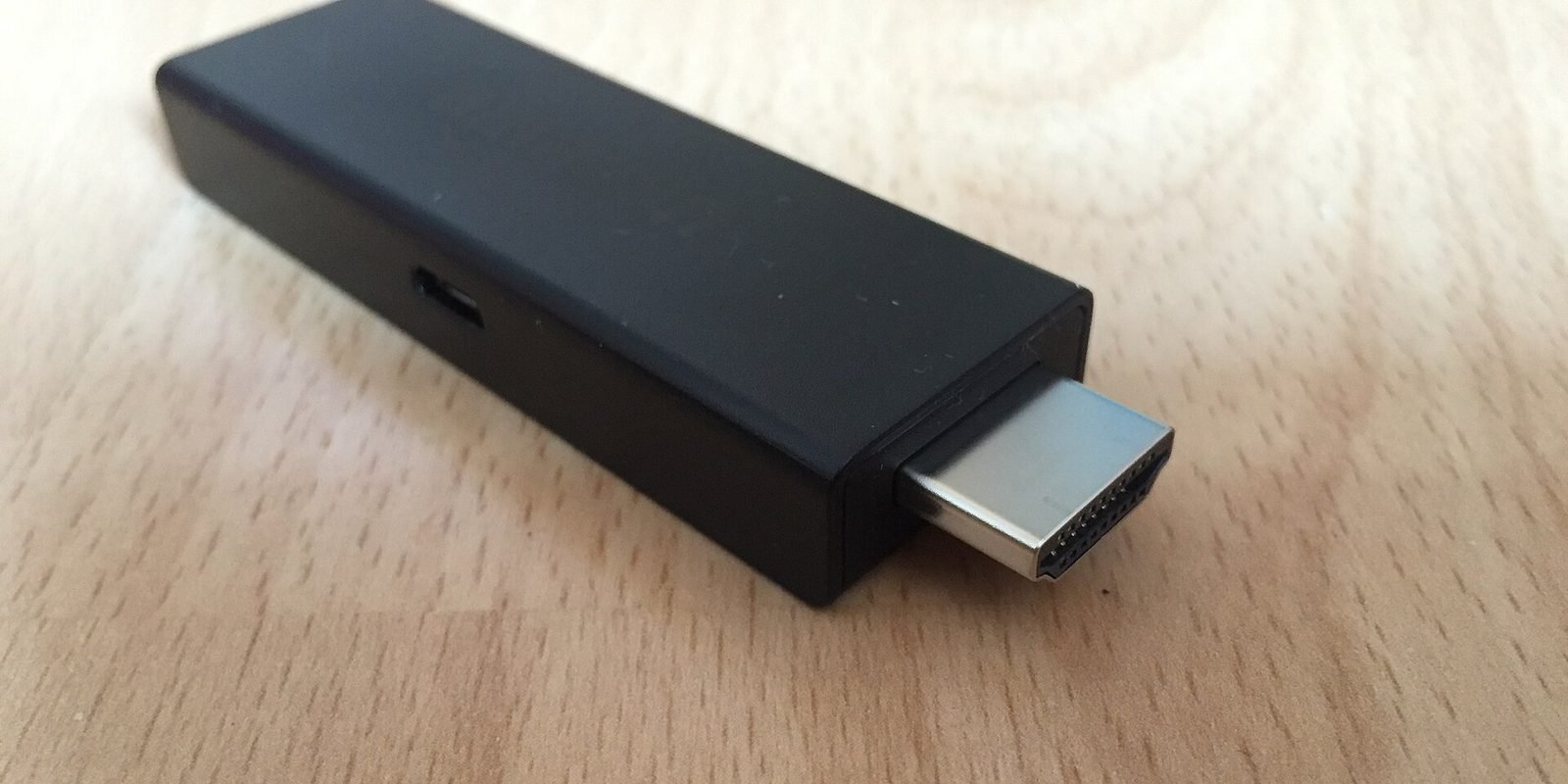
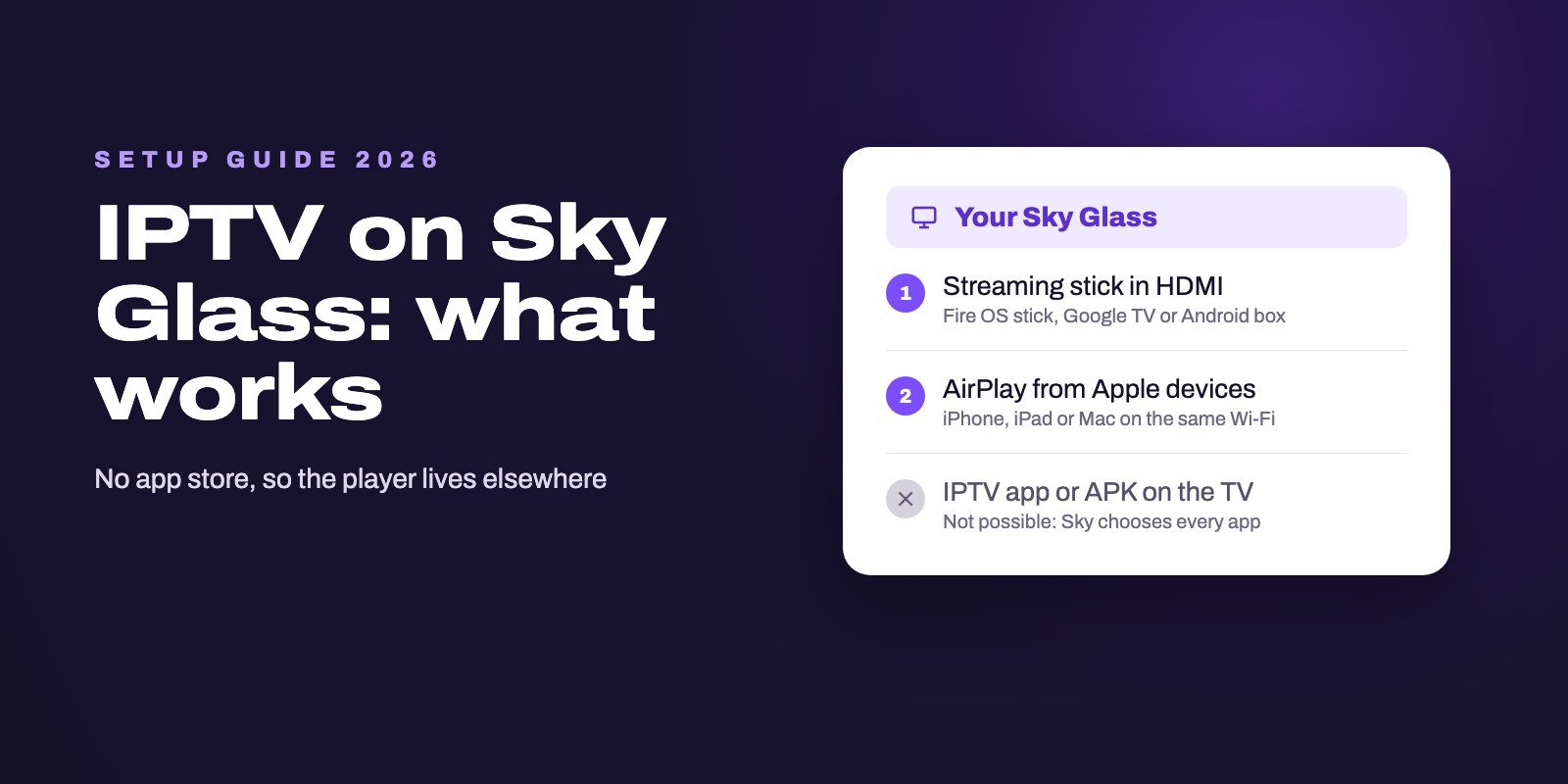
You cannot install an IPTV app on Sky Glass itself: there is no app store, no Downloader and no way to add an APK. You can still watch IPTV on the screen in two ways. Plug a Fire OS stick, a Google TV streamer or an Android TV box into one of its spare HDMI ports and run your player there, or send the picture from an iPhone, iPad or Mac with AirPlay, which Sky added at the end of 2024.
So the question is not which Sky Glass IPTV app to download, because no such app can run on the TV. Anything sold under that name is a third-party product made for other devices. Once you know that, setting up IPTV on Sky Glass takes about ten minutes and one small device.
Note: Smart IPTV App is an IPTV provider, and we promote our own service on this page. The apps and devices mentioned here are made by independent companies.
Last checked: October 21, 2026, against answers on the Sky Community forum and press coverage of the Entertainment OS update and the Gen 2 and Air models. Sky updates the software regularly, so menu names may shift slightly. Smart IPTV App is not affiliated with Sky. Sky Glass and Sky Stream are trademarks of Sky UK Limited.
Why there is no IPTV app on Sky Glass
Most smart TVs work like a phone. They have an app store and a little storage, and you download what you want. Sky Glass works differently. It runs Sky's own software, Entertainment OS, and the apps you see on the home screen are chosen by Sky.
Asked whether an app could be downloaded onto a Glass TV, the accepted answer on the Sky Community forum was short: "There is no App Store on Sky Glass. Sky control the choice of apps." A longer reply in another thread explains why: Sky Glass has no on-board storage for customers and no means of downloading apps, because the apps run from Sky's servers and only Sky can add or remove them.
The app line-up covers the big streaming and catch-up services. It does not include TiviMate, IPTV Smarters, VLC, Kodi or any other general IPTV player, and you cannot add one yourself. The same applies to the Sky Stream puck, which runs the same software.
This also explains why the Firestick tricks you may have read about do nothing here. There is no "unknown sources" setting to switch on and no Downloader app to type a code into, so a "Sky Glass downloader code" can only install something on a different device. Our Downloader codes guide explains how those codes work on the devices that accept them.
The two ways at a glance
| Streaming device in HDMI | AirPlay from an Apple device | |
|---|---|---|
| What you need | A Fire OS stick, a Google TV streamer or an Android TV box | An iPhone, an iPad or a Mac on the same Wi-Fi |
| Choice of players | Every major player, TiviMate included | Whatever runs on your Apple device |
| TV guide | Full guide in most players | The guide your phone's player shows |
| Remote | The stick's own remote | Your phone or tablet |
| Best for | Watching IPTV every day | Testing, or a match from time to time |
For daily viewing, the streaming device wins without much contest. AirPlay is useful when you already own an iPhone and want to try a service tonight without buying anything.
Way 1: Plug a streaming device into Sky Glass
Sky Glass has spare HDMI inputs for exactly this kind of job. The 2025 Gen 2 and Glass Air models each have three HDMI 2.1 inputs, one of them with eARC, according to TechRadar's launch coverage, and owners on Sky's forum suggest the same workaround to anyone who wants an app that Glass does not offer: a Fire Stick or similar in a free port.
Which device to choose
- A Fire OS stick, such as the Fire TV Stick 4K Max, runs TiviMate, IPTV Smarters and the other usual players. Be careful with the newest models: Amazon is moving some sticks, including the 4K Select, to Vega OS, which does not accept players from outside its store. Our Firestick IPTV guide lists which models still work.
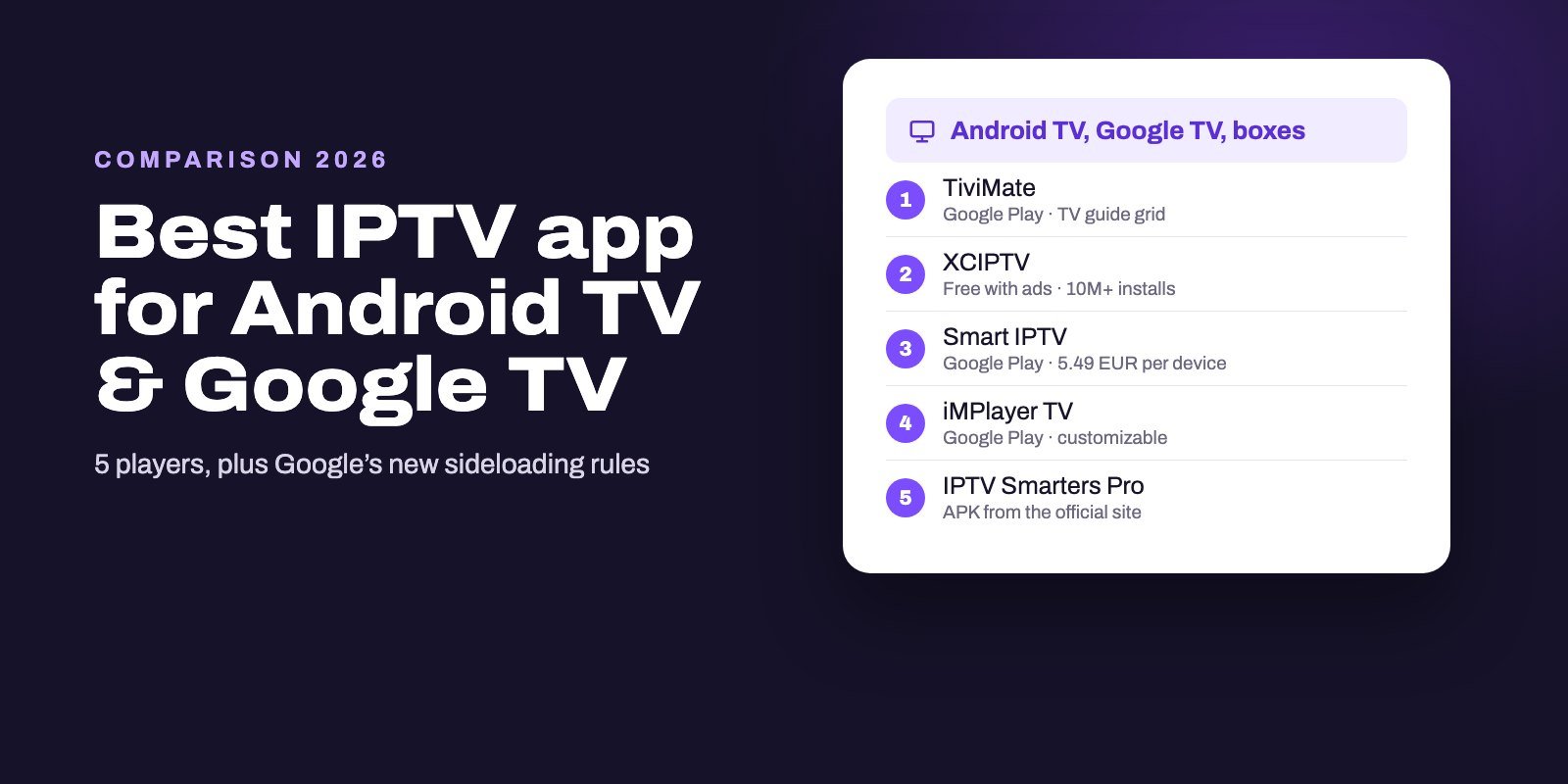
- A Google TV streamer or an Android TV box installs players straight from the Play Store, and a box with an Ethernet port gives the steadiest picture. Our Android TV player guide compares the apps.
- An Apple TV 4K also works in an HDMI port, with players from the App Store. See our Apple TV and iPhone guide for the ones worth trying.
Connecting it, step by step
- Plug the stick or box into a free HDMI input on the Sky Glass, and power it from the mains adapter that came with it.
- Press Home on the Sky Glass remote and open the apps and inputs menu, where the HDMI inputs are listed. Select the one you used.
- Follow the stick's own setup, install your IPTV player, and add the login your provider sent you.
- To go back to Sky, press Home on the Sky Glass remote.
If you want the TV to switch input on its own when you wake the stick, check the setting a Superuser points to on Sky's forum: Settings, then Connected devices, then HDMI one touch control. Turn on HDMI-CEC on the stick as well. Some owners report that they still have to pick the input by hand, so do not worry if it does not switch every time.
For 4K, use a good cable. When an owner had trouble with an HDMI device, the Superuser who answered on the forum recommended a cable that supports the HDMI 2.1 standard.
Way 2: AirPlay from an iPhone, iPad or Mac
For a long time, Sky Glass could not receive anything cast from a phone. That changed in December 2024, when an Entertainment OS update brought Apple AirPlay to Sky Glass and Sky Stream, as What Hi-Fi reported. Android phones did not get an equivalent, so this route is for Apple devices only.
- Connect your iPhone, iPad or Mac to the same Wi-Fi network as the Sky Glass.
- Open your IPTV player on the Apple device and start a channel.
- If the player shows an AirPlay button, tap it and choose the Sky Glass. If it does not, open Control Center, tap Screen Mirroring and pick the TV.
It works, with the usual limits of casting. The phone has to stay on and nearby, a call or a notification can interrupt the picture, and quality depends on your Wi-Fi as well as the stream itself. Keep the phone plugged in and close to the router. For an evening match it is fine. For every night of the week, a stick in an HDMI port is far more comfortable.
What about the "Sky Glass IPTV" apps and APKs?
Search for Sky Glass IPTV and you will find services, apps and APK files that use the name. None of them comes from Sky, and none of them can run on the TV, which accepts no APK and no app from outside Sky's own selection. An APK is an Android file: at best it installs on a stick or a box plugged into the Glass, like any other player would.
So treat the name as marketing. A service that calls itself Sky Glass IPTV is an IPTV service like any other, and the same checks apply: a real trial, a clear price, and a way to reach someone when something stops working. A player app is only as good as its developer, so install players from the official store of your stick or from the developer's own site.
If you have Sky Stream instead
The Sky Stream puck runs the same software as Sky Glass, so the rules are the same: no IPTV player on the puck itself, and AirPlay for Apple devices. The difference is the TV it is plugged into. If that TV is a Samsung or an LG smart TV, it has its own app store, and you can install an IPTV player on the TV and simply switch between the puck and the player. Our guides for Samsung and LG TVs show which players are available.
Common problems on Sky Glass
The TV jumps back to Sky while you watch the stick
Some owners report that Glass leaves an HDMI input on its own. Check the HDMI one touch control setting on the Glass and the HDMI-CEC setting on the stick, and restart both. If it keeps happening, turning HDMI-CEC off on the stick and switching inputs by hand from the apps and inputs menu is the reliable fallback.
The stick is not detected
Unplug it, plug it into another HDMI input, and make sure it is powered from the wall adapter rather than a weak USB socket. Then select the input again from the apps and inputs menu.
Channels buffer or freeze
The TV is rarely the cause. A Wi-Fi stick hidden behind a large screen often has a weaker signal than the TV itself, so an Ethernet adapter or a box with an Ethernet port can make a real difference. Our guide to IPTV buffering and errors starts with a two-minute test that shows where the problem sits.
Channels play but the guide is empty
That is a player setting, not a Sky Glass issue. Our IPTV EPG guide explains how players load the guide and how to fix a blank one.
Try it on your Sky Glass before you subscribe
With a stick in place, the only question left is whether the service plays well on your connection. Ask for our 24-hour trial, add it to the player on your stick or your iPhone, and watch for an evening before you pay anything.
Once you subscribe, your details arrive by WhatsApp or email within 5 to 15 minutes of payment, and plans allow one to four devices at the same time, so the stick on the Glass and a phone can share one subscription. UK prices are on our IPTV UK page, and every plan is on the IPTV subscription page.
Frequently asked questions
Does IPTV work on Sky Glass?
Not through an app on the TV, because Sky Glass has no app store and cannot install players. It works through a streaming stick or box plugged into a spare HDMI port, or through AirPlay from an iPhone, iPad or Mac.
Can you download apps on Sky Glass?
No. Sky chooses the apps on Sky Glass and runs them from its own servers. There is no app store, no storage for your own apps and no way to install an APK.
Is there a Downloader code for Sky Glass?
No code installs anything on Sky Glass itself, because the TV cannot run the Downloader app. Codes advertised for Sky Glass are meant for a Fire OS stick or an Android box plugged into it.
What is the best device for IPTV on Sky Glass?
A Fire OS stick such as the Fire TV Stick 4K Max, a Google TV streamer or an Android TV box with an Ethernet port. Avoid Vega OS sticks such as the 4K Select, which cannot install IPTV players.
Can I cast IPTV from my phone to Sky Glass?
From an iPhone, iPad or Mac, yes: Sky Glass has supported AirPlay since an update in December 2024. Android phones cannot cast directly to Sky Glass; plug in a Google TV streamer or a stick instead.
How do I switch to HDMI on Sky Glass?
Press Home on the Sky Glass remote, open the apps and inputs menu and select the HDMI input your device uses. Press Home again to return to Sky.
Does the same apply to Sky Stream?
Yes. The Sky Stream puck runs the same software and cannot install IPTV players either. If it is connected to a Samsung or LG smart TV, you can use a player from that TV's own app store.