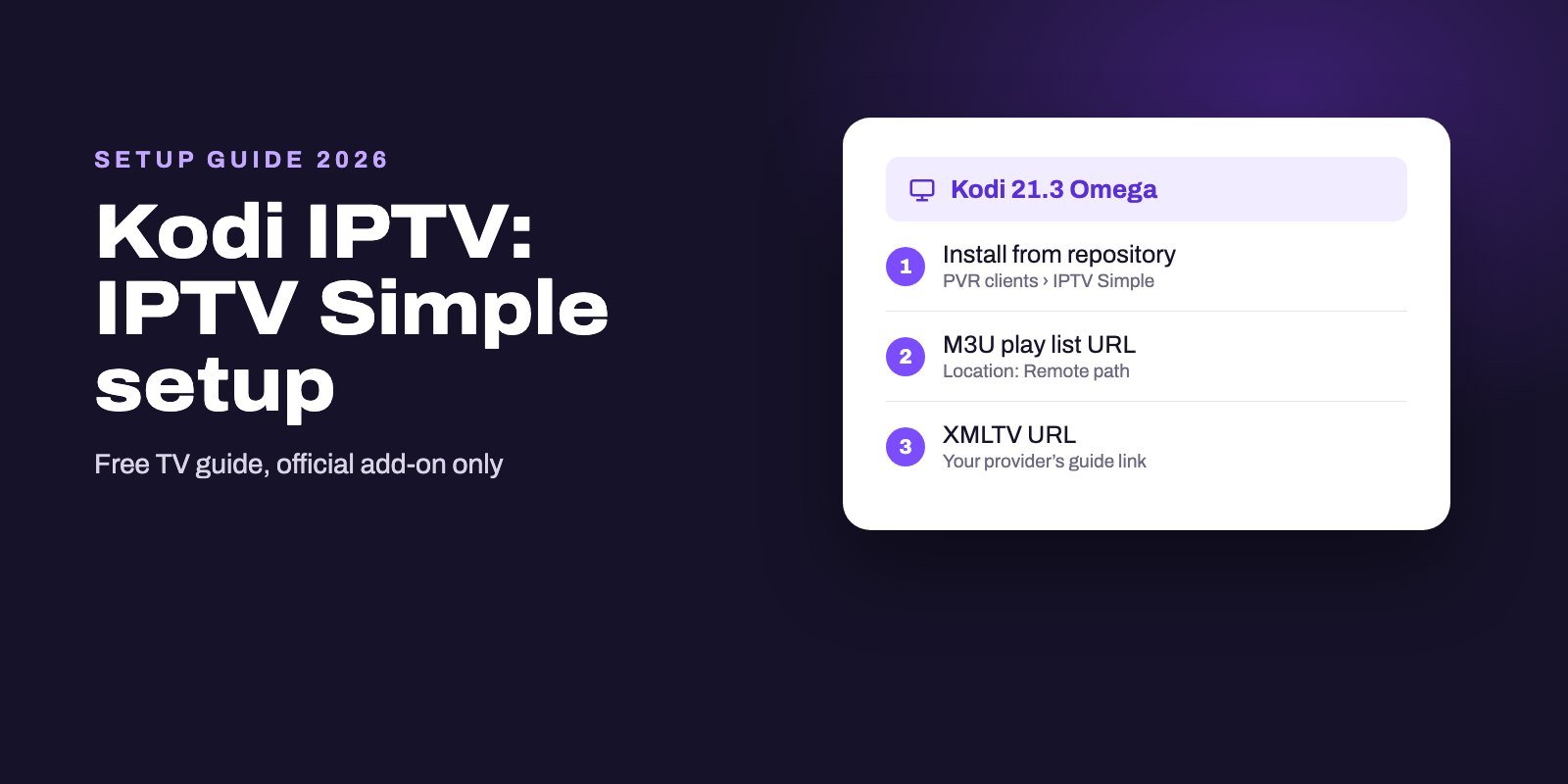
To watch IPTV on Kodi, install the official add-on PVR IPTV Simple Client from Kodi's own repository (Settings, Add-ons, Install from repository, PVR clients), then open its settings, paste your provider's M3U link as the playlist and the XMLTV link as the guide, and open TV from the main menu. Kodi is free, runs on Windows, Mac, Linux, Android and more, and turns your subscription into a full channel grid.
Kodi gives you the most complete free TV guide of any IPTV setup, but only through that one official add-on. Everything else sold under the Kodi name, from "Kodi IPTV" apps in the stores to unofficial add-ons and builds, is where the trouble starts. Stay inside Kodi's own repository and the setup is clean, free and stable.
Note: Smart IPTV App is an IPTV provider, and we promote our own service on this page. The apps and devices mentioned here are made by independent companies.
Last checked: October 11, 2026, against kodi.tv, the official Kodi wiki, the add-on's Kodi page and its documentation on GitHub. Menu names can differ slightly between skins and Kodi versions.
What Kodi brings to IPTV
Kodi is a media center, free and open source, made by the Kodi Foundation, a non-profit consortium. Out of the box it plays your films, music and photos. It knows nothing about IPTV until you add a PVR client, and the one built for IPTV services is PVR IPTV Simple Client.
According to its page on kodi.tv, the add-on supports M3U playlists, live TV, radio channels and an electronic program guide. Version 21.11.0 was published on July 2, 2025 by its maintainers, nightik and Ross Nicholson, and the current release counts more than two million downloads. Its documentation adds the features that make Kodi stand out among free options: catch-up when your provider offers it, timeshift so you can pause and rewind a live channel, and, since Kodi 20, several playlist and guide pairs side by side.
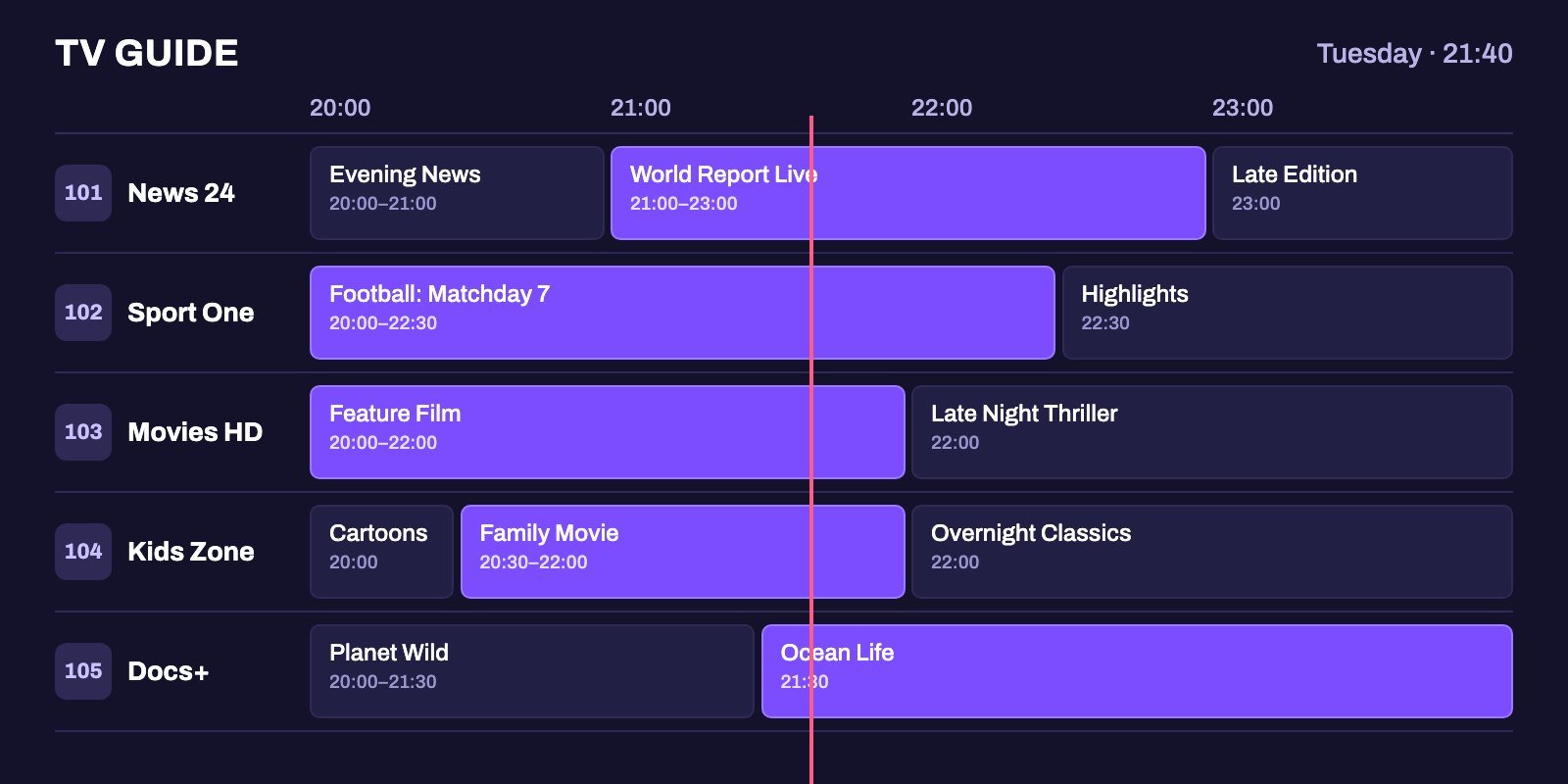
The result is a proper TV grid, channel groups, a guide you can scroll for days ahead and, when your provider offers it, catch-up of what you missed, on hardware you probably own already. The price is a longer first setup than with a dedicated app.
Where Kodi runs
| Device | Official Kodi? | How to get it |
|---|---|---|
| Windows, Mac, Linux, Raspberry Pi | Yes | Builds on kodi.tv |
| Android phones, Android TV, Google TV | Yes | Google Play (Kodi Foundation) or kodi.tv |
| Fire OS sticks | Yes, Android build | Install the APK with Downloader |
| Vega OS Fire TV sticks | No | Sideloading is blocked |
| iPhone and iPad | Yes, outside the App Store | iOS 11 or later, jailbreak or direct install |
| Apple TV | tvOS build listed | Outside the App Store |
| LG webOS TVs | webOS build listed | See the webOS page on kodi.tv |
| Roku | No | No version exists |
On Android, the Google Play listing is published by the Kodi Foundation and has more than 50 million installs. On Apple devices the situation is different: the iOS download page says Kodi runs on iOS 11 and later and points jailbroken devices to the BigBoss repository, which tells you this is not a one-tap App Store install. If you want Kodi on a TV, an Android TV or Google TV device is by far the easiest home for it, and a Fire OS stick works too, as our Firestick guide explains.
Which Kodi version to install
The download pages recommend Kodi 21.3, codenamed Omega, and the add-on page you install IPTV Simple from belongs to that generation. Kodi's home page also announces the first release candidate of Kodi 22, "Piers". Release candidates are for testing. For a TV you want to rely on, take the recommended version and let the next one mature.
That also answers a question Google shows next to Kodi searches: no, Kodi is not shutting down. A project preparing its next major release is very much alive.
Step 1: install PVR IPTV Simple Client
The add-on lives in Kodi's official repository, so there is nothing to download from a website. The Kodi wiki gives the path:
- Open Kodi and go to Settings.
- Choose Add-ons, then Install from repository.
- Open the PVR clients category.
- Select PVR IPTV Simple Client and press Install.
If Kodi says the installation failed, check that the device is online and that you are on the recommended Kodi version, because add-ons in the official repository are built for a specific Kodi generation.
Step 2: point it at your playlist and guide
Once installed, the add-on needs two addresses from your provider. The wiki's route to its settings is Settings, Add-ons, My add-ons, PVR clients, then Configure on IPTV Simple.
- The playlist. In the M3U part of the settings, change Location to Remote path, then paste the link into the field the documentation calls M3U play list URL.
- The guide. In the EPG part, set its Location to Remote path as well and paste the guide address into XMLTV URL.
- Caching. Both parts offer to keep a local copy of the file, an option the documentation lists for remote playlists and guides.
Confirm, enable the add-on if Kodi asks, and give it a moment. A restart of Kodi can help the first load. Then open TV from the main menu, where channels and the guide appear.
What about Xtream Codes on Kodi?
IPTV Simple speaks M3U and XMLTV, not Xtream Codes. The wiki is explicit that the add-on uses the M3U playlist format for live streams and XMLTV for the guide. So if your provider sent a server, a username and a password, ask for the same account in M3U form, plus the guide link. Smart IPTV App includes both formats with every plan, so the swap takes one message.
You will find unofficial add-ons that promise an Xtream login inside Kodi. They do not come from Kodi's repository, and they are exactly the kind of extra this guide recommends avoiding.
Catch-up, timeshift and several playlists
Three features in the add-on documentation explain why some people prefer Kodi to any dedicated app.
Catch-up. When your provider supports it, IPTV Simple can play programs that have already aired, straight from the guide. Without provider support, the option has nothing to show, so check with your service first.
Timeshift. The add-on can buffer a live channel from the moment you start watching, letting you pause, rewind and catch up again. Useful for live sport, when the doorbell rings at the wrong moment.
Several sources. Since Kodi 20, you can run more than one playlist and guide pair. In the add-on's Configure screen, choose to add a new add-on configuration, and fill it in like the first. Handy if two services share the house.
Trimming a huge playlist
Big services carry tens of thousands of channels, and loading all of them on a modest box makes Kodi slow to start and tiring to browse. IPTV Simple has settings for exactly that, described in its documentation.
In the channel group settings, you can tell the add-on to load only channels that belong to groups, then choose Some groups and type up to five group names for TV, and five for radio. Those names must match the group titles in your playlist exactly, capital letters included, so copy them from the list your provider shows rather than guessing. Load your own country, sport and films, and leave the rest out.
A second setting helps the guide. Ignore Case for EPG Channel IDs lets IPTV Simple match a channel to its schedule even when the two files disagree on capital letters, a small mismatch that can leave whole rows of the grid blank.
The "Kodi IPTV" apps that are not Kodi
Kodi's name attracts copies, and Google ranks some of them high. On October 11, 2026, a Google Play app called "Kodi IPTV Player Pro" came from a publisher named Funky Tech, not from the Kodi Foundation. A Roku channel called "Kodi IPTV Player" appeared too, although kodi.tv lists no Roku version at all, and a website with a Kodi-style address offers its own player.
The same caution applies to unofficial add-ons and ready-made "builds" shared on forums and video channels. They change Kodi far beyond what you asked for, and some are built around streams nobody has licensed. The clean path is short: Kodi from kodi.tv or Google Play, IPTV Simple from the official repository, and a playlist from a service you pay.
Is Kodi legal, and does it still work?
Kodi itself is legal, free software from a non-profit foundation, much like VLC. What matters is what you feed it. A playlist from a service that holds the rights to its channels is one thing; add-ons built around unlicensed streams are another, and the law where you live decides how that is treated.
It still works, too. The recommended release is current, the IPTV add-on is maintained in the official repository, and Kodi 22 is close to release. Searches suggesting otherwise usually come from add-ons that stopped working, not from Kodi.
When IPTV Simple does not work
No channels appear
Open the add-on's settings again and check the playlist address character by character, with the location set to Remote path. If the playlist opens in VLC, as our VLC guide shows, the link is fine and the problem is in Kodi's settings.
The guide is empty
Check the XMLTV address, give Kodi time to download it, and remember that the guide only fills channels whose IDs match. Our EPG explainer covers mismatched IDs and wrong times.
Channels stutter
Kodi is rarely the cause. Our buffering guide starts by finding out whether the device, the network or the server is to blame.
Changes do not show
Kodi caches playlists and guides. After editing the settings, restart Kodi so it reads the new addresses.
Kodi or a dedicated player?
Pick Kodi if you want catch-up, timeshift and a guide grid without paying for an app, if you already use it for your own media, or if you watch on a computer, where our Windows and Mac player guide puts it next to the alternatives. Pick a dedicated player if you want the quickest setup and an Xtream login: on Android TV devices that means TiviMate, our pick for watching live channels every day.
Set up Kodi with a working account
Kodi needs two links to shine, a playlist and a guide, and both come with every Smart IPTV App plan, next to the Xtream login your other devices may prefer. Ask for our free 24-hour trial, paste the two addresses into IPTV Simple and judge the grid yourself. If you subscribe afterwards, expect your details by WhatsApp or email shortly after payment, usually within a quarter of an hour, for up to four simultaneous screens. The full plan list sits on the IPTV subscription page.
Frequently asked questions
Can I use Kodi for IPTV?
Yes, with the official add-on PVR IPTV Simple Client. Install it from Kodi's repository, then add your provider's M3U playlist and XMLTV guide links.
How do I add an M3U link to Kodi?
Open the IPTV Simple settings through Settings, Add-ons, My add-ons, PVR clients, Configure. Set the M3U location to Remote path and paste the link as the M3U play list URL.
Can Kodi use Xtream Codes?
Not through the official IPTV Simple add-on, which uses M3U for channels and XMLTV for the guide. Ask your provider for the M3U version of your account.
Is Kodi legal?
Kodi is legal, free and open-source software from the non-profit Kodi Foundation. Legality depends on the content sources you add to it.
Is Kodi shutting down?
No. Kodi 21.3 is the recommended release and the project has announced a release candidate for Kodi 22.
Can I install Kodi on a Roku or a Firestick 4K Select?
No. Kodi has no Roku version, and Vega OS Fire TV sticks such as the 4K Select block sideloaded apps. Fire OS sticks can run the Android build.
Which Kodi version should I use for IPTV?
The recommended release, Kodi 21.3 Omega, which matches the IPTV Simple add-on in the official repository. Leave the Kodi 22 release candidate for testing.
Why is my Kodi IPTV guide empty?
Check the XMLTV URL in the add-on settings, let Kodi download it, and make sure the guide's channel IDs match your playlist.